How to add Picture or logo in Gmail Signature
How to add Picture or logo in Gmail Signature
1) Picture or Logo source can be from Google drive, Computer local drive or external link either.
2) Login to your gmail account.
3) Click on "Setting"
4) Click on "General" Tab. Scroll down and select "Signature". Write the signature in the white space provided. To insert the picture or logo, click on "Insert image".
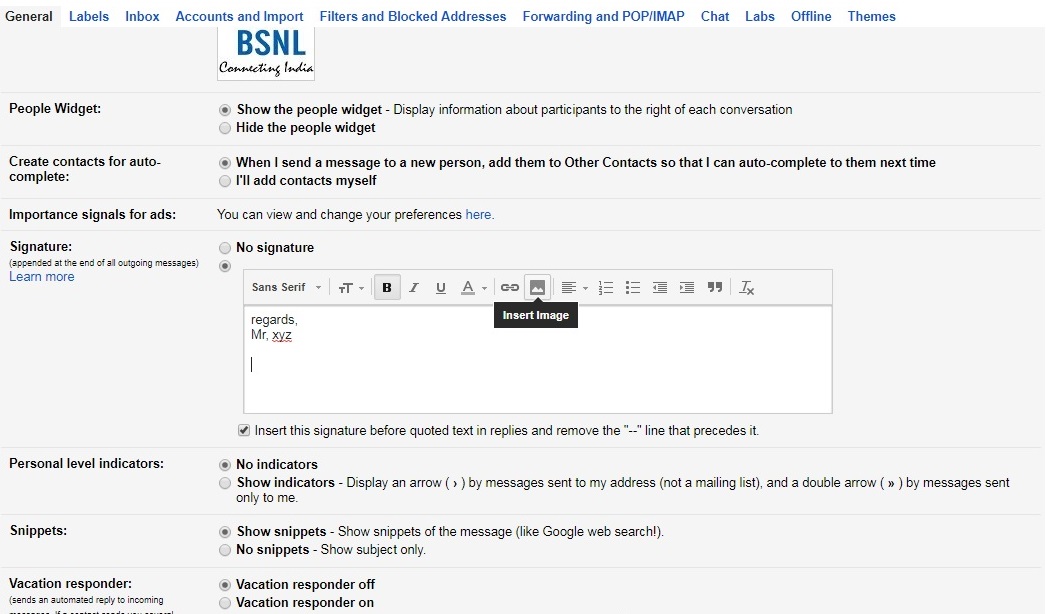
5) Now choose the location of the picture or logo by selecting the proper tab i.e. if the logo/picture is in already stored in google drive, select the "My Drive" tab and select the picture and click "add select".
If the picture is in your computer hard-drive, select "Upload" tab, click on "select a file from your computer" button and locate the picture which you want to upload and click "add select".

6) Now you can see the picture in the white space available for Signature.
7) Scroll down and Click "Save Setting".
Thank you.

Top 5 Microsoft Paint Tips & Tricks http://www.techieleaf.net/things-you-never-knew-you-do-with-microsoft-paint/
ReplyDeleteYour blog post is decent and meaningful for new users. A title is very unique and content is powerful to attract the audience directly. Continue to write this type of article in the future for us. How To Add Signature To Gmail And Procedure To Insert Image
ReplyDeleteMMORPG OYUNLAR
ReplyDeleteinstagram takipçi satın al
Tiktok jeton hilesi
Tiktok Jeton Hilesi
saç ekim antalya
İnstagram takipçi satın al
İNSTAGRAM TAKİPCİ
metin2 pvp serverlar
instagram takipçi satın al
perde modelleri
ReplyDeleteMOBİL ONAY
mobil ödeme bozdurma
Nft nasil alinir
Ankara Evden Eve Nakliyat
trafik sigortası
dedektör
web sitesi kurma
aşk kitapları
smm panel
ReplyDeleteSmm Panel
iş ilanları
İnstagram takipçi satın al
Hırdavatçı
www.beyazesyateknikservisi.com.tr
Servis
tiktok jeton hilesi